Gimp is the premiere photo-editing software of the Open-source world. It is similar to photoshop in terms of function.
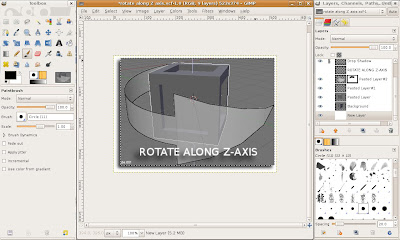
You can install gimp using the Synaptic Package Manager, but it doesn't usually give you the latest version of Gimp.
anyway, if you still insist on installing gimp using ubuntu repositories, do this
sudo apt-get install gimp
In order to get the latest version of Gimp, you need to compile it yourself.
Installing the Required PackagesMake sure gcc, g++, ruby, and the development versions of some basic libraries.
sudo apt-get install gcc g++ ruby
If one of the "configure" processes below fails because it needs a certain library, install it. For example, if configure tells you "Can't find xxx", install "libxxx-dev".
For my version of Gimp, i installed the following packages:
graphviz-dev libaa1-dev libexif-dev libgnomeui-dev libgtk2.0-dev liblcms1-dev libpoppler-dev librsvg2-dev libtiff4-dev libwebkitgtk-dev libxpm-dev python-gtk2-dev
to install these on your system, do this on the terminal:
sudo apt-get install graphviz-dev libaa1-dev libexif-dev libgnomeui-dev libgtk2.0-dev liblcms1-dev libpoppler-dev librsvg2-dev libtiff4-dev libwebkitgtk-dev libxpm-dev python-gtk2-dev
Download the TarballsDownload the tarballs from the respective file servers (make sure to download the latest version):
babl from
ftp://ftp.gimp.org/pub/babl/GEGL from
ftp://ftp.gimp.org/pub/gegl/GIMP from
ftp://ftp.gimp.org/pub/gimp/extract them on your PC, say on build_gimp folder.
Compiling Gimpfirst, compile babl first.. go to the babl folder (be sure you're on build_gimp folder)
cd build_gimp
cd babl-xxx
xxx is the version number of babl.
then, do the following (make sure you are still in the babl-xxx directory
./configure --prefix=/opt/gimp-2.6
make
sudo make install
second, Make binaries, includes, libraries in /opt/gimp-2.6 available for use. Do this on your terminal.
export PATH=/opt/gimp-2.6/bin:$PATH export LD_LIBRARY_PATH=/opt/gimp-2.6/lib export PKG_CONFIG_PATH=/opt/gimp-2.6/lib/pkgconfig
third, go to the gegl directory
cd ..
cd gegl-xxx
gegl-xxx is the directory of the extracted gegl tarball. Then do this on the terminal (make sure you are still in the gegl-xxx directory)
./configure --prefix=/opt/gimp-2.6
make
sudo make install
lastly, go to the gimp directory
cd ..
cd gimp-xxx
gimp-xxx is the directory of the extracted gimp tarball. Finally, do this on the terminal (make sure you are still in the gimp-xxx directory)
./configure --prefix=/opt/gimp-2.6
make
sudo make install
Enjoy GimpIf all went well, you can find your newly compiled gimp under
/opt/gimp-2.6/bin/
and look for
gimp 2.6ErrorIf in case you encounter an error similar to the following:
make[1]: Leaving directory `/home/garu/downloads/gimp/gimp_build/gimp-2.6.5/themes' Making clean in cursors make[1]: Entering directory `/home/garu/downloads/gimp/gimp_build/gimp-2.6.5/cursors' test -z "gimp-tool-cursors.h tool-cursors.list" || rm -f gimp-tool-cursors.h tool-cursors.list rm -rf .libs _libs rm -f *.lo make[1]: Leaving directory `/home/garu/downloads/gimp/gimp_build/gimp-2.6.5/cursors' Making clean in tools make[1]: Entering directory `/home/garu/downloads/gimp/gimp_build/gimp-2.6.5/tools' Making clean in . make[2]: Entering directory `/home/garu/downloads/gimp/gimp_build/gimp-2.6.5/tools' rm -f gimptool-2.0 gimptool-2.0 rm -rf .libs _libs rm -f test-clipboard test-clipboard rm -f *.o rm -f *.lo make[2]: Leaving directory `/home/garu/downloads/gimp/gimp_build/gimp-2.6.5/tools' make[1]: Leaving directory `/home/garu/downloads/gimp/gimp_build/gimp-2.6.5/tools' Making clean in m4macros make[1]: Entering directory `/home/garu/downloads/gimp/gimp_build/gimp-2.6.5/m4macros' rm -rf .libs _libs rm -f *.lo make[1]: Leaving directory `/home/garu/downloads/gimp/gimp_build/gimp-2.6.5/m4macros' Making clean in . make[1]: Entering directory `/home/garu/downloads/gimp/gimp_build/gimp-2.6.5' rm -rf .libs _libs rm -f *.lo make[1]: Leaving directory `/home/garu/downloads/gimp/gimp_build/gimp-2.6.5'
do the following in the terminal
make clean
and repeat the process.. make sure to follow the steps carefully.
Create a LauncherTo create a launcher from the
Applications menu, Right-click on the Applications menu, and select
Edit Menus.
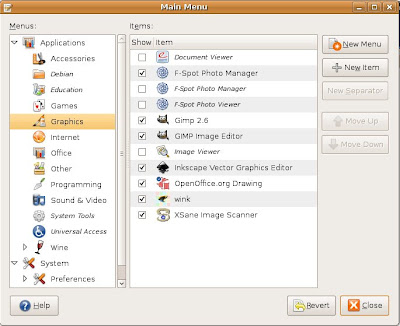
Go to the
Graphics section, and click on
New Menu.
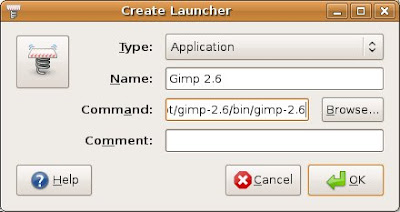
in the Name, put Gimp (or whatever you want), in the
Command, go to
/opt/gimp2.6/bin
and select
gimp 2.6press OK.
There you have it, the latest version of gimp on your PC!
if you enjoyed this post, please leave a comment, or subscribe.


 Posts
Posts


